

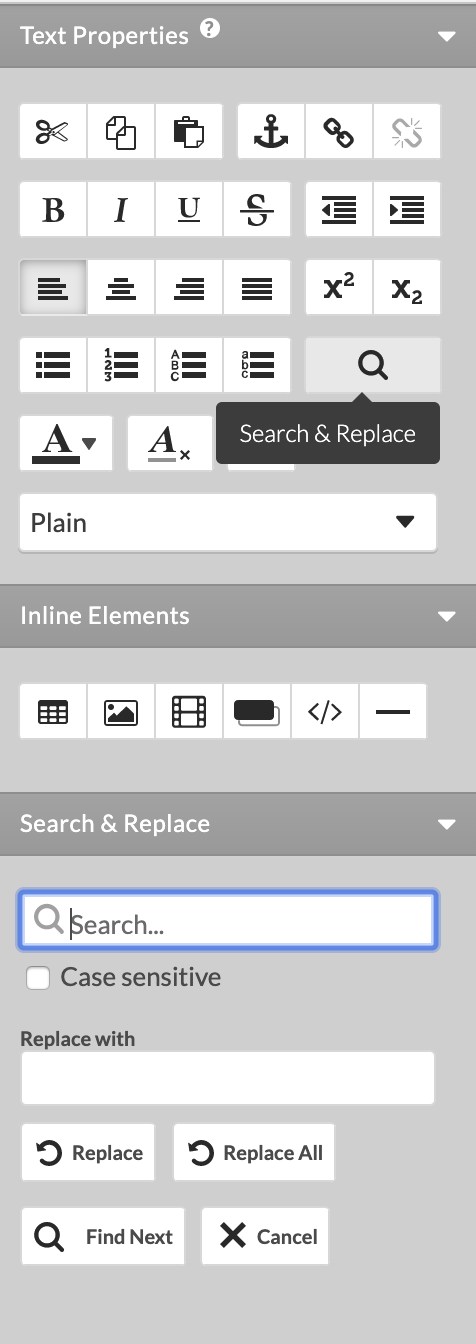
Editing of text is easier with the Search & Replace tool. It is available in the Text and Image element by clicking inside it to enter editing mode.
To find a word in the text - press the Search and Replace icon. In the toolbar that opens to the right fill in the word you want to search for in the first field. Press the Find Next button. The occurrences will be highlighted within the text.
You can refine the search by checking the Case sensitive option.
To replace a single word found in the text - fill in the new one in the Replace with field. Press the Replace button.
To change the word throughout the edited text, press the Replace All button.
To stop the Search and Replace preserving changes made so far - press Cancel .
Click outside the Text and Image editing area to apply the changes on the page.