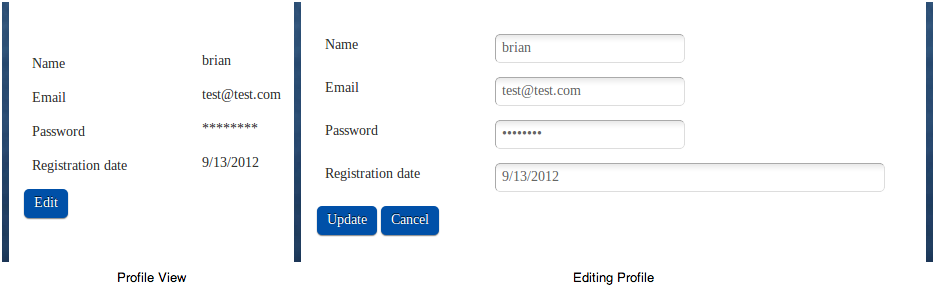

The Profile Editor allows registered members of your website to view/edit the information, associated with their member profiles.
Just go to Left Menu > Add-ons > Learn More > Activate to install the application on your account. Once you've done this, the application will appear in the My Add-ons section. The Profile Editor element is added to a page in the same manner as any other content element. Simply drag-and-drop the Profile Editor from the My Add-ons menu on a blue area of the page to apply the element wherever you want it to appear.
Options
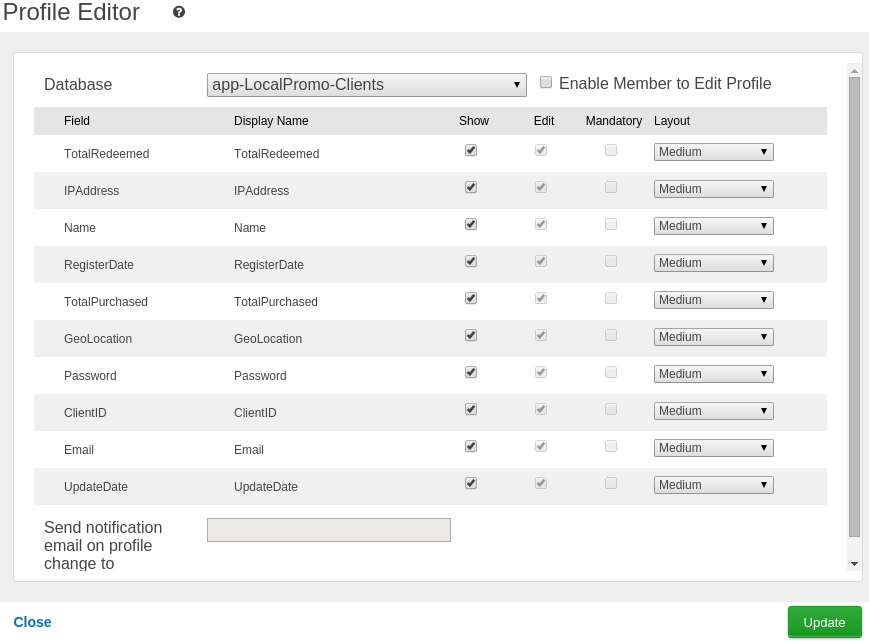
Database: Select the Database where the members data is stored.
Enable Member to Edit Profile: Allow members to edit their profile information.
Display Name: Title of the field that will be displayed to the member.
Show/Edit: Specify whether the member can see/edit the field.
Layout: Select a layout for the field.
Send notification email on profile change to: A notification message will be sent to the specified email address every time a profile is being edited.
Once you add the Profile Editor on your site, members will be able to view/edit their profile information only if they are logged-in from the Members Login element.