

It is easy to install available Applications for your website in just a few clicks.
To activate an application:
Click Add-Ons found in the Left Menu. The applications catalog will show up.
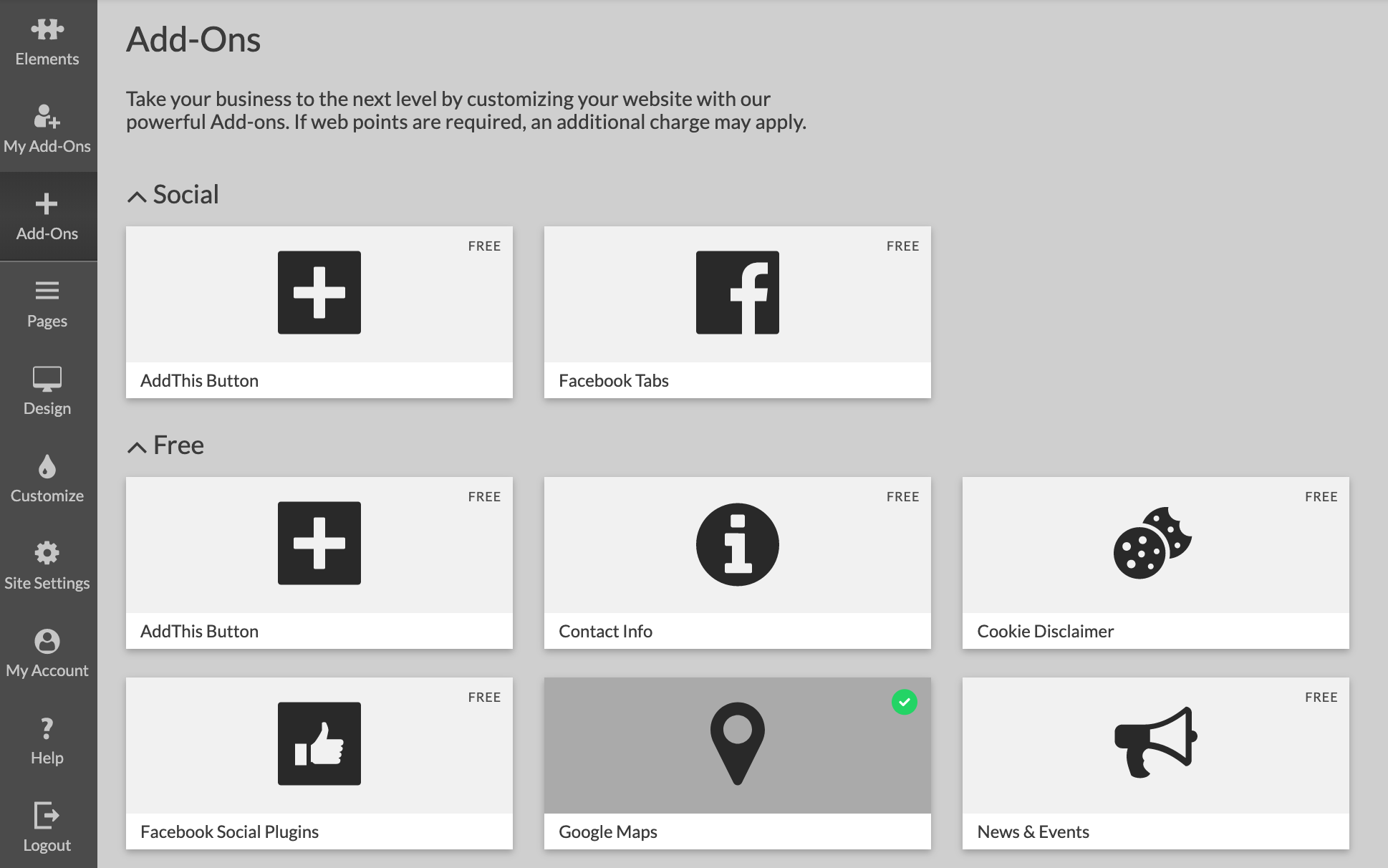
Rollover or click on an application you want to review and click the Learn More button.

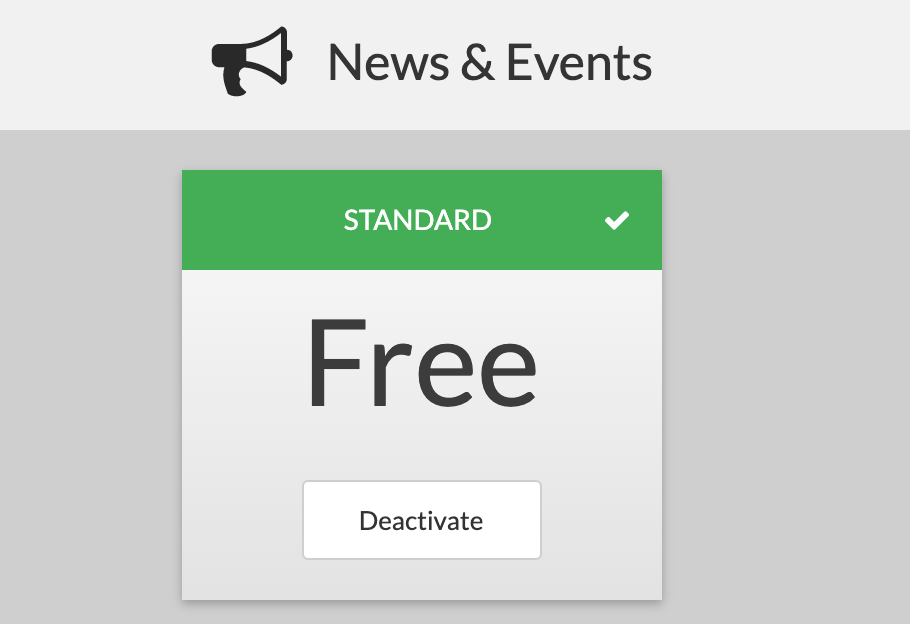
After that you can activate the application by click on Activate button or deactivate it if it was previously installed.
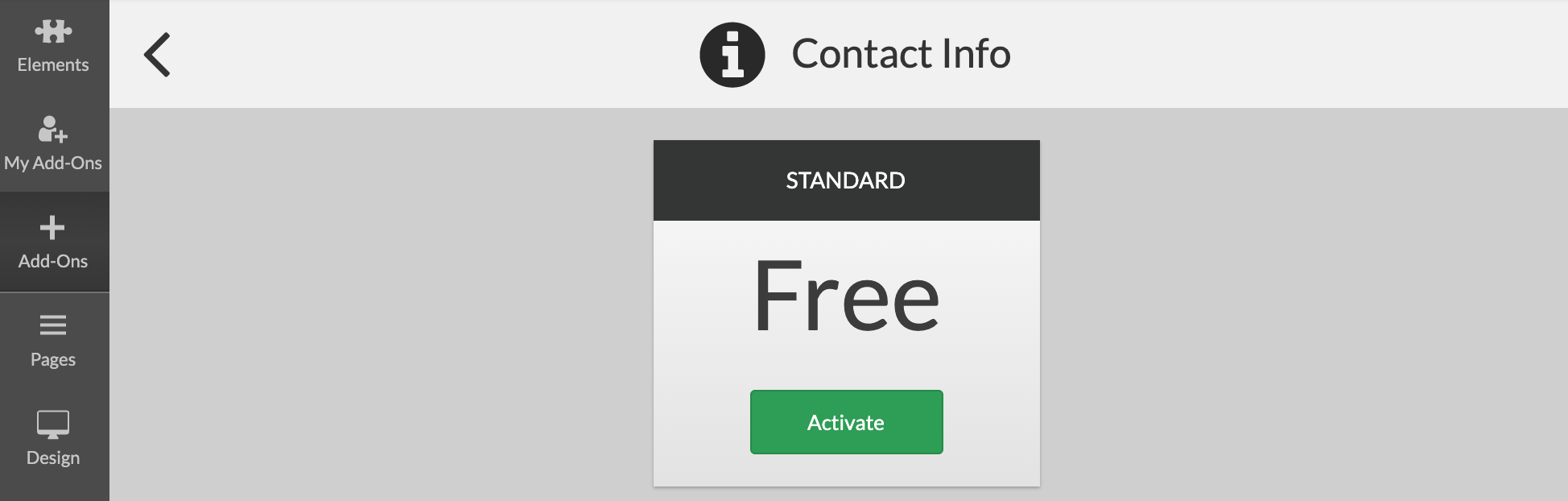
Note: Auto-installed applications cannot be deactivated.
Application can be added from:
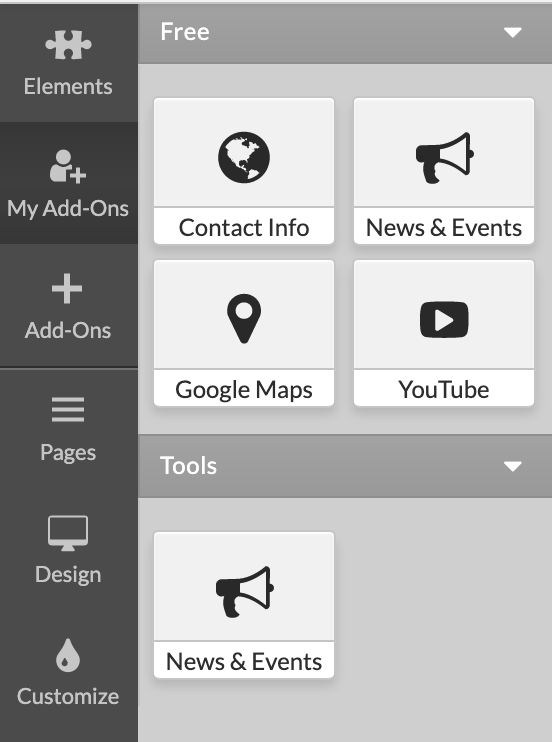
My Add-ons button.
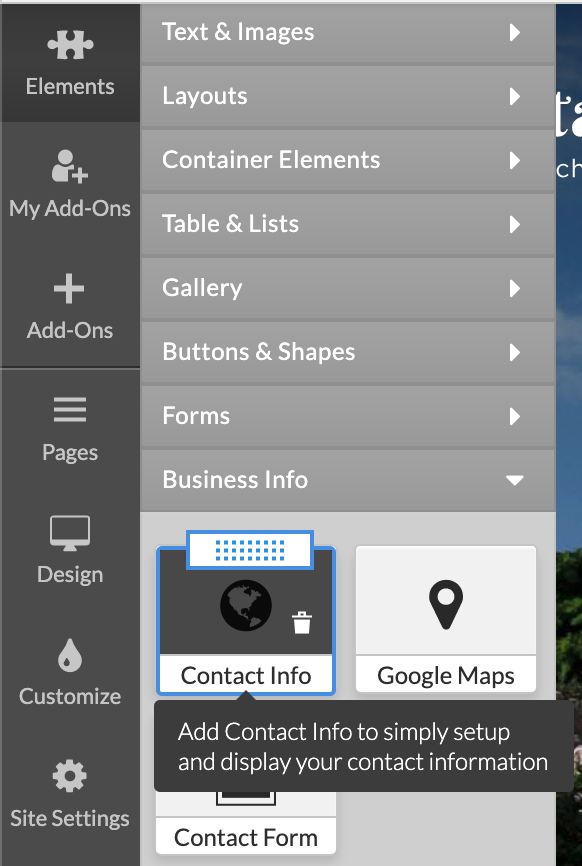
Elements menu (Contact info, Google maps, Open hours, Facebook Social Plugins).
To deactivate the application:
Click on Add-Ons in the Left Menu, click on Learn More button and click Deactivate button.
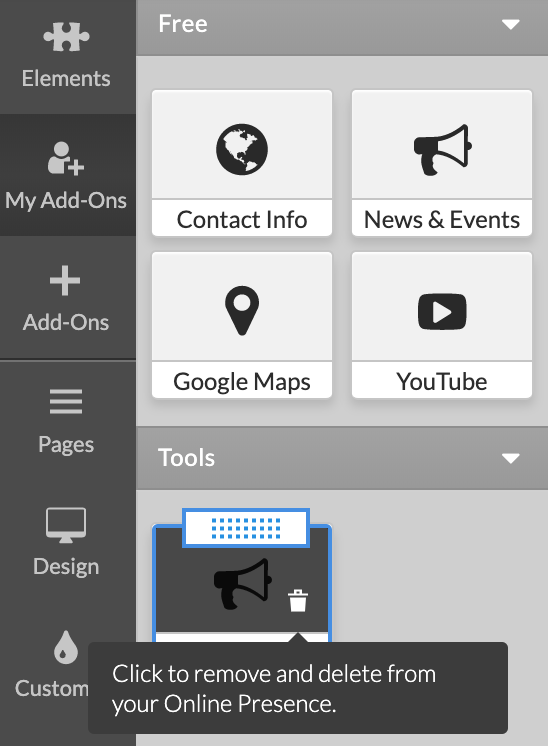
Click on My Add-ons, rollover an application, click bin icon.
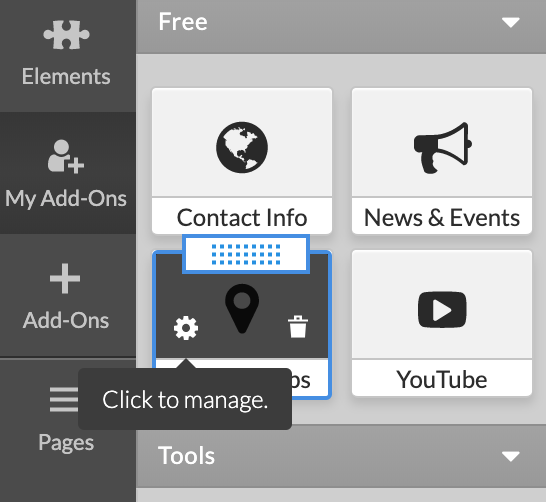
Some applications have application settings, which open in popup window. To open the application settings click on My Add-Ons in the Left Menu, hover over the app with your mouse cursor and click on the cogwheel icon.
Note: Database editor and Cookie Disclaimer applications can be edited only from cogwheel icon and can not be added on a page.
Important: Available applications can vary depending on the plan(package) settings.