

Below can be found short instructions on enabling cookies for your browser:
Chrome
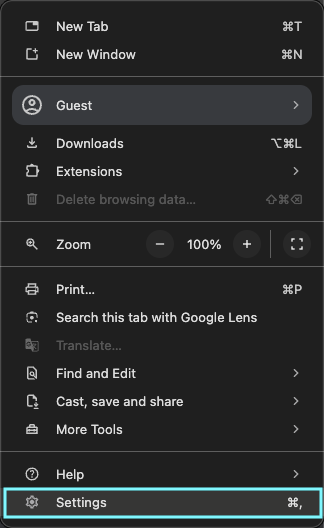
1. In the top-right corner of Chrome, click the "Customise and control" button in the top right corner then click on "Settings".
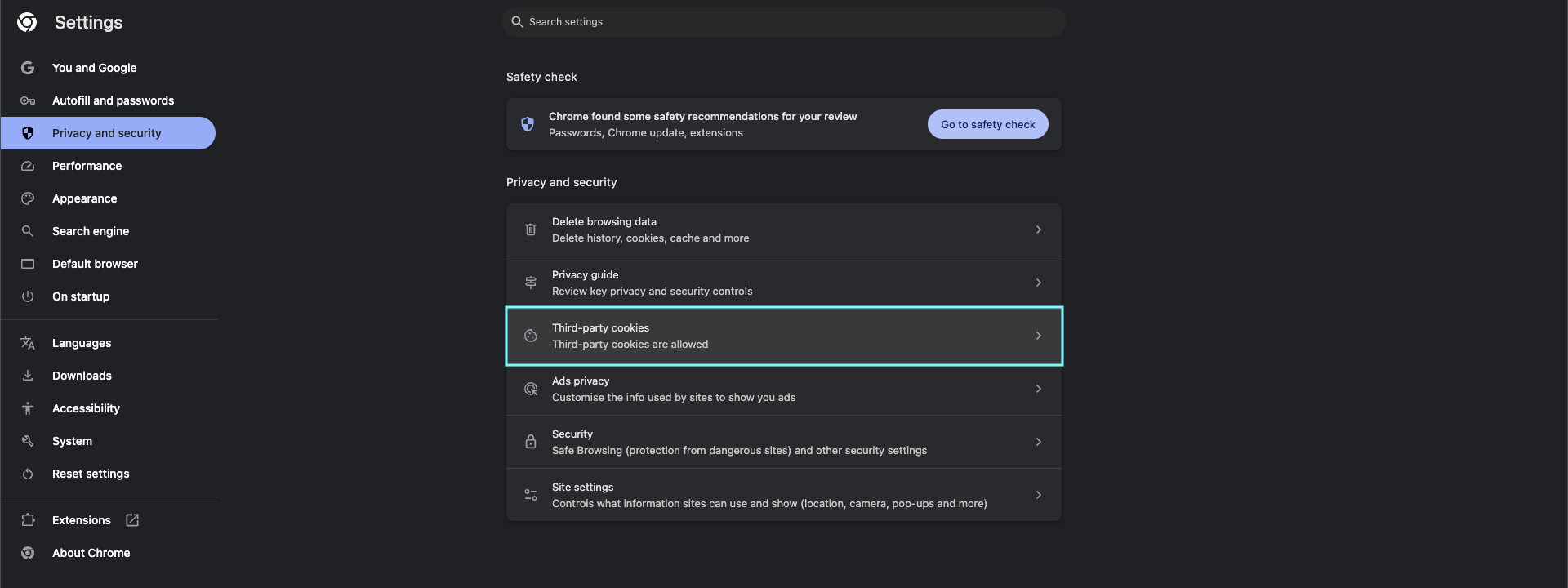
2. Under "Privacy and security" click on "Third-party cookies".
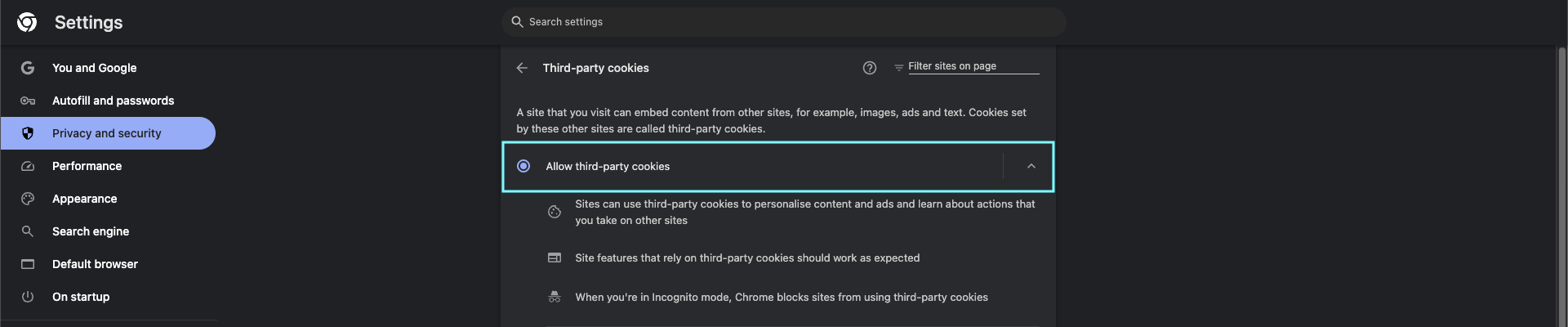
4. In the "Third-party cookies" section, choose "Allow all cookies".
5. Restart Chrome for the changes to take effect.
Firefox
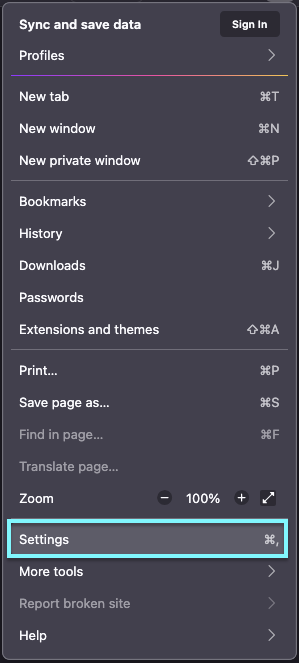
1. Click on "Open Menu" in the top right corner, then click on "Settings"
2. In the left menu, click on "Privacy & Security".
3. Scroll down to the "Cookies and Site Data" section, and click on "Manage Exceptions".
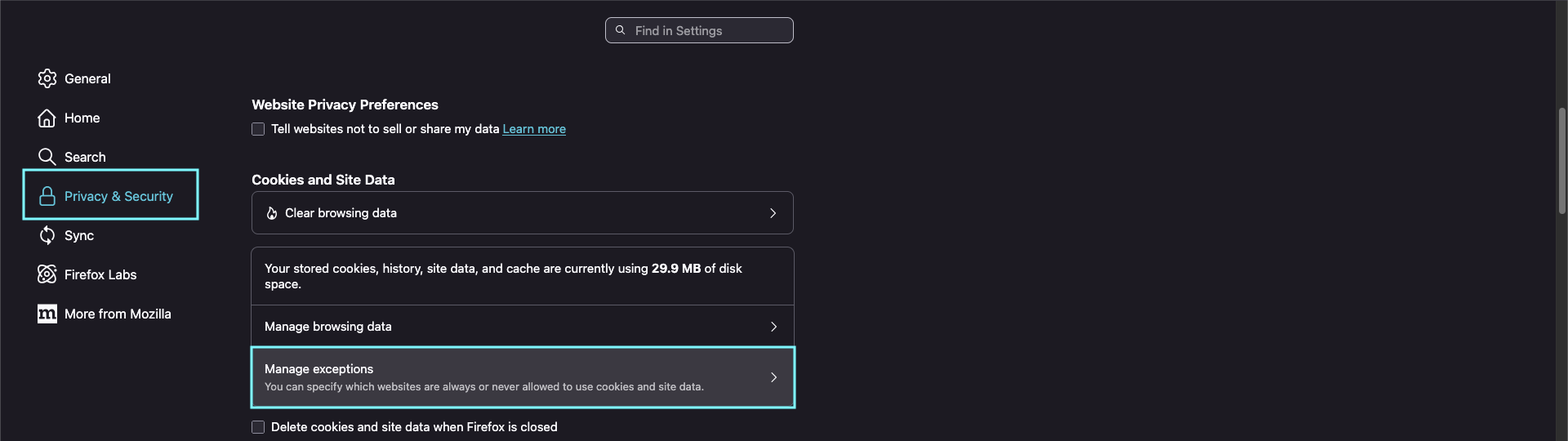
4. Make sure "websitecreatorprotool.com" is not blocked.
5. Add "websitecreatorprotool.com" and click on "Allow" and Save Change.
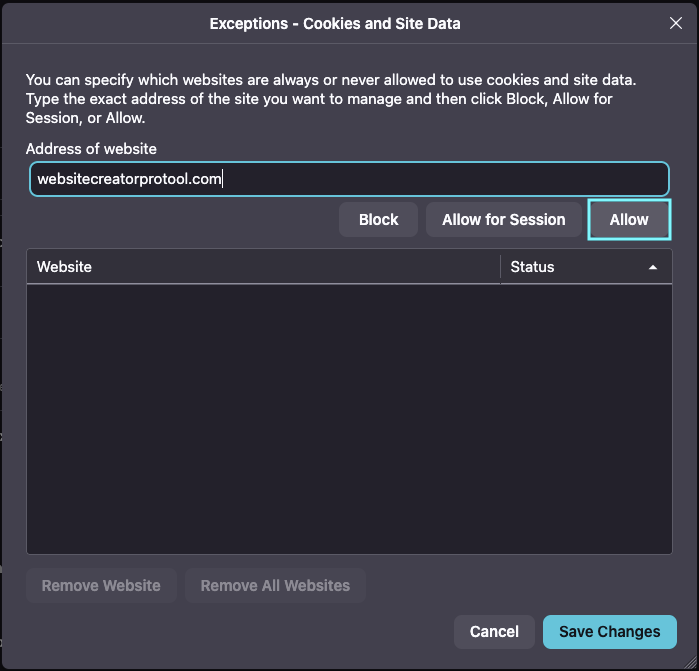
6. Restart Firefox.
Edge
1. Click on "Settings and More" in the top right corner.
2. Click on the "Settings" actions button on the toolbar.
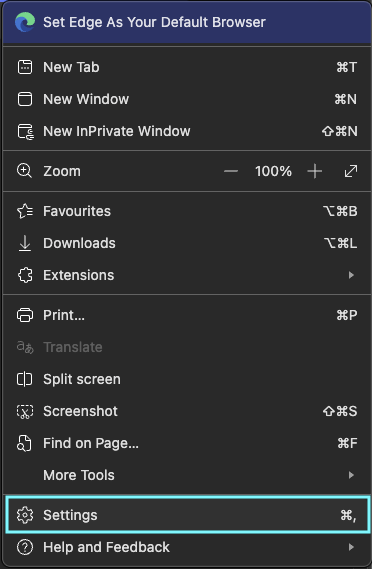
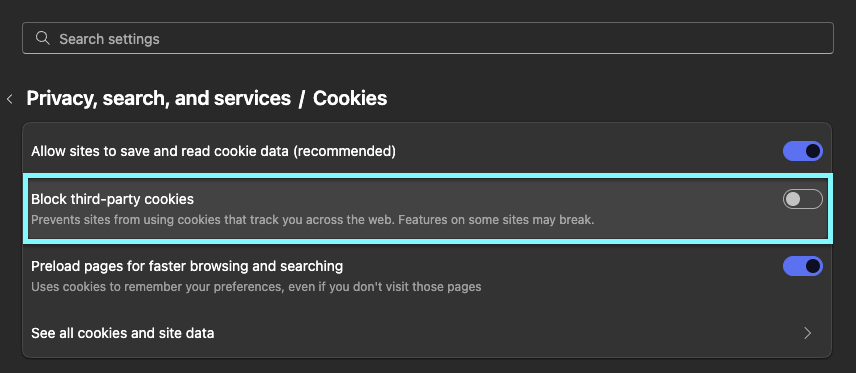
3. In the left menu, click on "Privacy, search, and services", then "Cookies".
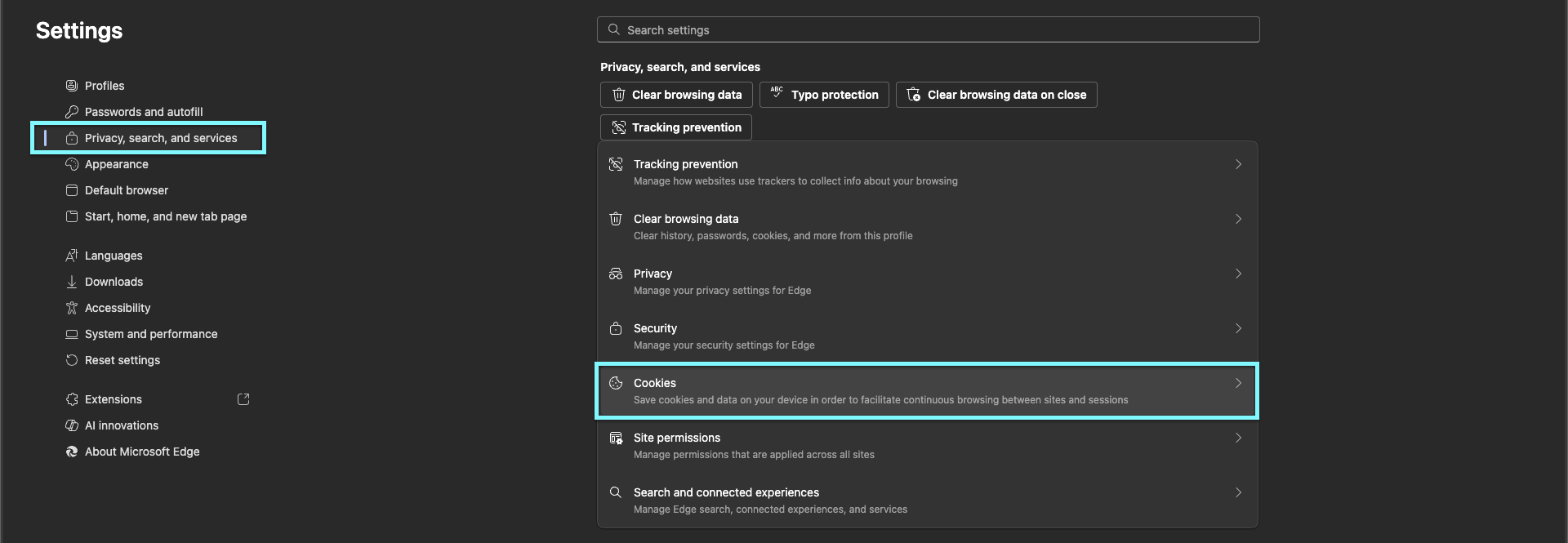
4. Make sure "Allow sites to save and read cookie data" option is enabled and "Block third-party cookies" option is disabled.
5. Restart Edge.
Safari
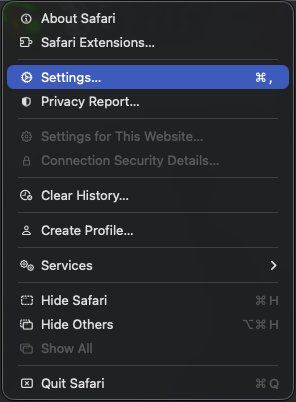
1. Choose Safari > Preferences
2. Select the Privacy tab
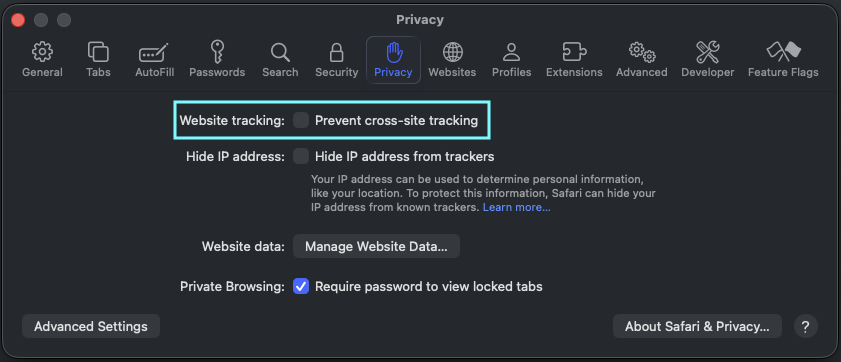
3. Disable "Prevent cross-site tracking"