
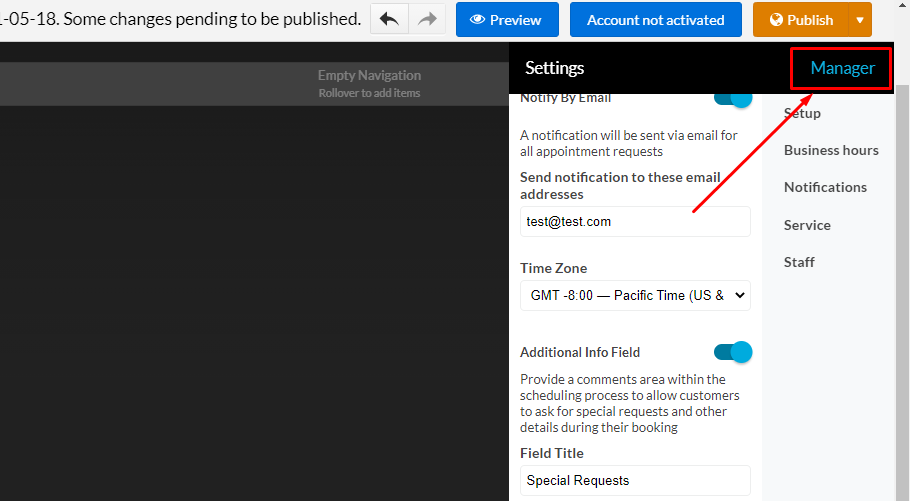
To access Appoint Manager click on the Appointment Scheduler element on the page, then click on Manager in the top right corner of the right menu.
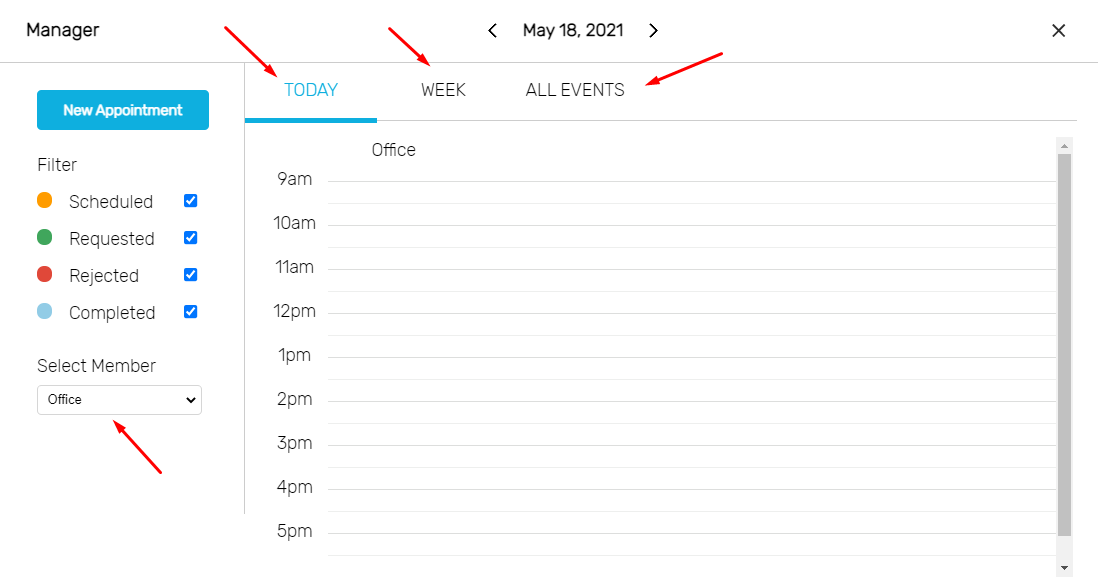
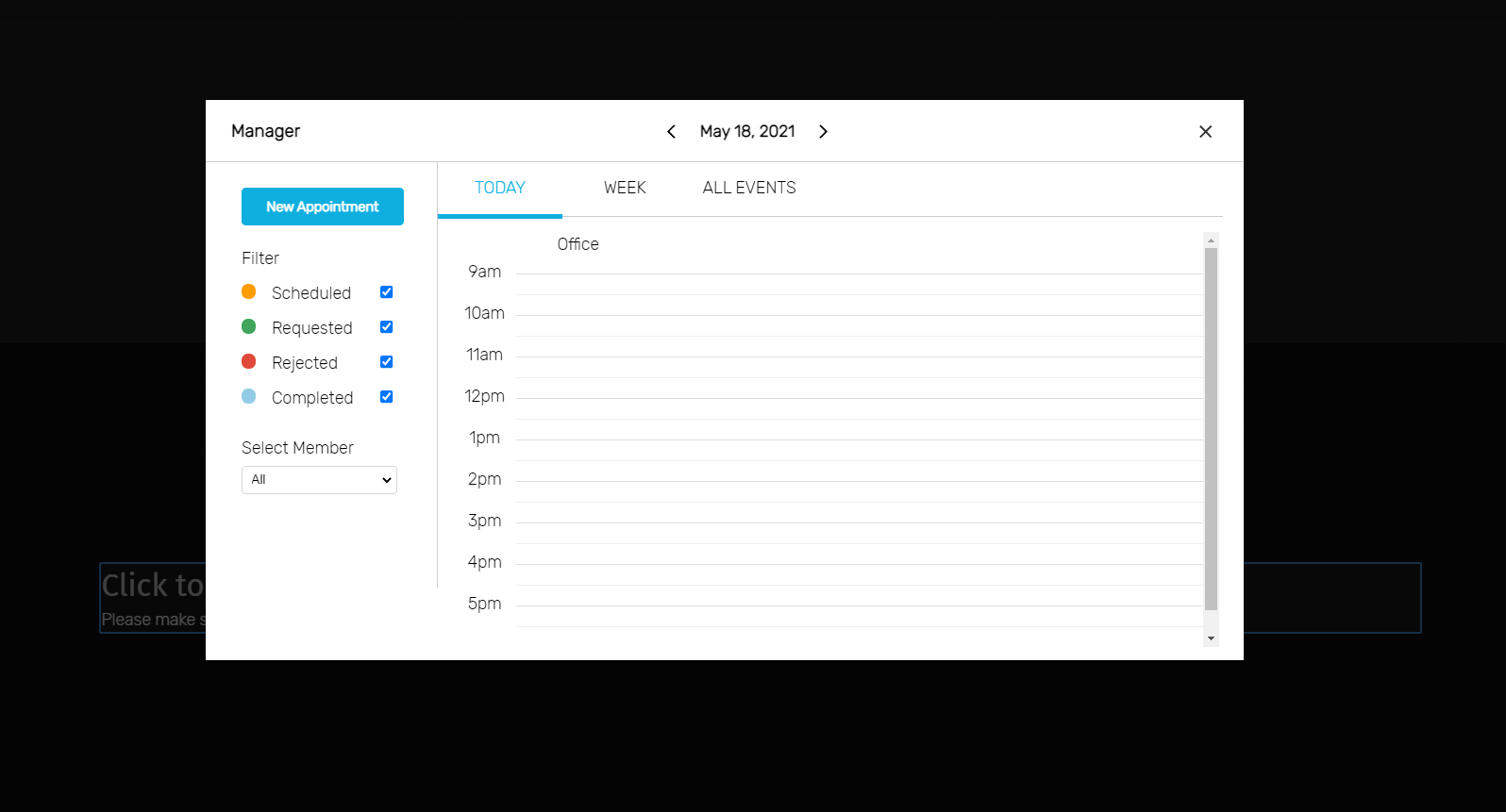
You will see a full list of completed, scheduled, requested and rejected appointments. You can switch between one day view and 7 days view per team member.
New Appointment
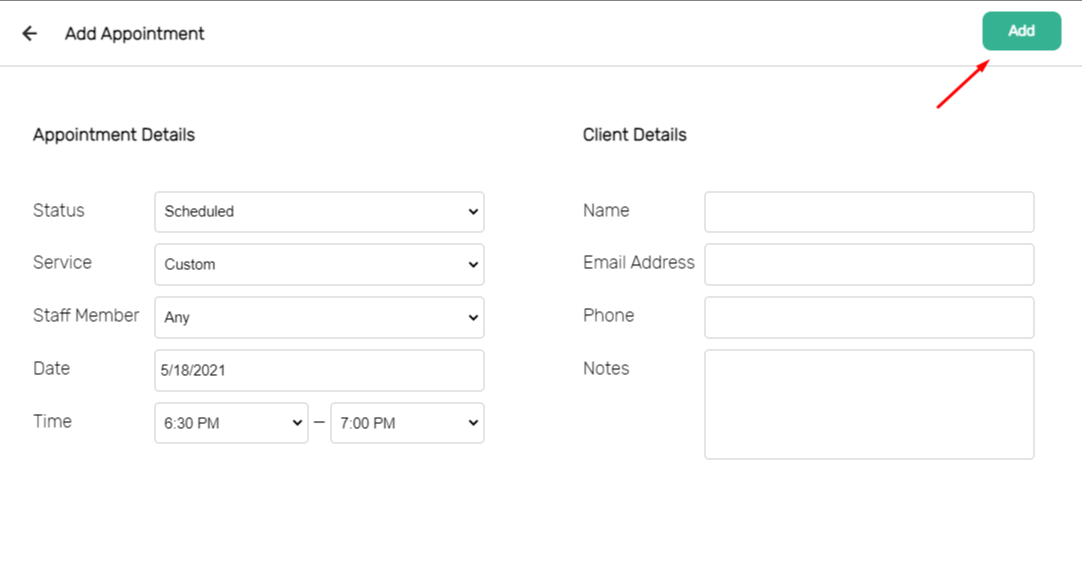
In some cases your clients may schedule an appointment over the phone, or by email for example. To avoid double bookings, you should close out any time slots that have been filled in your Appointment Scheduler application. Just click New Appointment, edit the appointment details and click Add.
You can sort appointments by today, week, or all events, on the left they can be sorted by staff member.